Plot Targets
See the "PlotTargets" API. To get started with a PlotTarget, import
import io.github.quafadas.plots.SetupVega.{*, given}And then the following "given" PlotTargets are available:
PlotTargets.desktopBrowseropens a browser window on your desktop, to show the plot.-
PlotTargets.websocketsends the plot to a websocket server on the default port of 8085. You must have started that server seperately in a seperate process with e.g.cs launch io.github.quafadas:dedav4s_3:0.10.7 -M viz.websockets.serve -- 8085or
scala-cli --dep io.github.quafadas:dedav4s_3:0.10.7 -M viz.websockets.serve -- 8085PlotTargets.publishToPortsends the plot to a websocket server, which you must have started separately.PlotTargets.almondshows the plot in a Jupyter notebook (or VSCode notebook) environment.
e.g. import viz.PlotTargets.websocket
Desktop Browser
The library writes a (temporary) file, assuming that
java.io.File.createTempFile()Is available. That temporary file assumes that you have an internet connection, and can resolve
<script src="https://cdn.jsdelivr.net/npm/vega-embed@5"></script>
<script src="https://cdn.jsdelivr.net/npm/vega@5"></script>
<script src="https://cdn.jsdelivr.net/npm/vega-lite@5"></script>
Finally, we assume the existence of a
java.awt.DesktopWhich has a browser available...
java.awt.Desktop.browse()And we browse to the temporary file created in step one. On some linux distributions, this may not work. Consider using the websocket target instead.
Websocket
Start the server, in a seperate terminal. You can do this using coursier in one line.
cs launch io.github.quafadas:dedav4s_3:0.10.7 -M viz.websockets.serve -- 8085This should start a server on port 8085. Check by visiting http://localhost:8085 in your browser. It should say "connected and waiting".
You can then use the publishToPort plot or websocket target, which will send the spec, to the server listening on that port.
Multiple plots
I often want to see multiple plots. Navigate to
http://localhost:8085/view/hi, and you'll see "connected and waiting" again.
http://localhost:8085/view/bob, and you'll see "connected and waiting" again.
Now, you'll need to update the desription of the chart, to match the trailing path of the url. e.g.
given port: Int = 8085
List(("A",0),("B",-8),("C",20)).plotBarChart(List(spec => spec("description") = "hi"))
List(("A",5),("B",8),("C",-1)).plotBarChart(List(spec => spec("description") = "bob"))
And both browser tabs will now update with their respective plots.
Almond
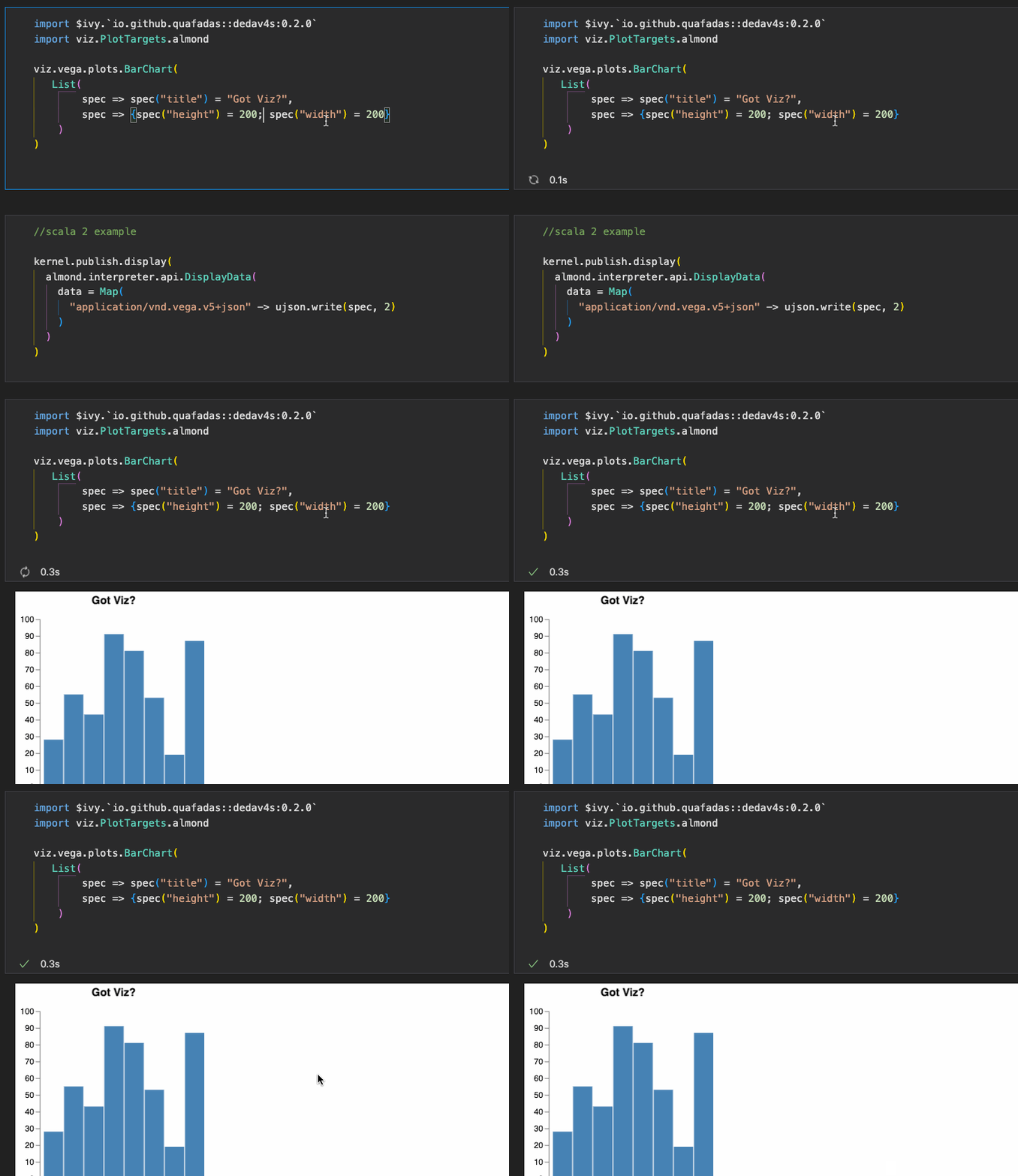
Feeds a jupyter computing instance the correct MIME type and the JSON spec, to display the plot in the Jupyter notebook (or VSCode notebook!) environment. Juypter ships with Vega, so it works OOTB, which is nice.
VSCode
Use the almond target and a .ipynb...
Gitpod
Gitpod support is kind of brittle and needs a little config. Not testewd recently. By default, dedav will attempt to contact port 48485 of a webserver it starts in the pod. It will detect the pod address through the gitpod environment variables.
You may change the port number, by setting the environment variable DEDAV_POD_PORT. If it is not set, it's default port is 48485.
The port number, you will need to set in the configuration of your gitpod project. In your .gitpod.yml
ports:
  - port: 48485
    onOpen: open-browser
    visibility: public
48485 is if you do not require a custom port. In your repl, try...
import viz.PlotTargets.gitpod
import viz.vegaFlavour
import viz.extensions.RawIterables.*

List(("A",5),("B",8),("C",-1)).plotBarChart(List())
List(("A",5),("B",8),("C",-1)).plotBarChart(List())
The duplicates command is deliberate. The first request will be ignored - it starts the webserver behind the scenes. Unfortunately, I can't find a way to wait for that process to finish, and then send the request - gitpod appears to wait to open up the ports, until the command has finished executing. I am outsmarted...
Do Nothing
import viz.PlotTargets.doNothing
import viz.extensions.RawIterables.*

List(("A",5),("B",8),("C",-1)).plotBarChart(List())
To no ones surprise, does nothing! The implementation simply executes unit (). I regret the CPU cycles :-).
Importantly, this is default behaviour - important when we reach scala JS.
printlnTarget
Formats and prints the final JSON spec to the console.
import viz.PlotTargets.printlnTarget
import viz.vegaFlavour
import viz.extensions.*

List(("A",5),("B",8),("C",-1)).plotBarChart(List())
// {"$schema":"https://vega.github.io/schema/vega/v6.json","description":"A basic bar chart example, with value labels shown upon pointer hover.","width":400,"height":200,"padding":5,"data":[{"name":"table","values":[{"category":"A","amount":5},{"category":"B","amount":8},{"category":"C","amount":-1}]}],"signals":[{"name":"tooltip","value":{},"on":[{"events":"rect:pointerover","update":"datum"},{"events":"rect:pointerout","update":"{}"}]}],"scales":[{"name":"xscale","type":"band","domain":{"data":"table","field":"category"},"range":"width","padding":0.05,"round":true},{"name":"yscale","domain":{"data":"table","field":"amount"},"nice":true,"range":"height"}],"axes":[{"orient":"bottom","scale":"xscale"},{"orient":"left","scale":"yscale"}],"marks":[{"type":"rect","from":{"data":"table"},"encode":{"enter":{"x":{"scale":"xscale","field":"category"},"width":{"scale":"xscale","band":1},"y":{"scale":"yscale","field":"amount"},"y2":{"scale":"yscale","value":0}},"update":{"fill":{"value":"steelblue"}},"hover":{"fill":{"value":"red"}}}},{"type":"text","encode":{"enter":{"align":{"value":"center"},"baseline":{"value":"bottom"},"fill":{"value":"#333"}},"update":{"x":{"scale":"xscale","signal":"tooltip.category","band":0.5},"y":{"scale":"yscale","signal":"tooltip.amount","offset":-2},"text":{"signal":"tooltip.amount"},"fillOpacity":[{"test":"datum === tooltip","value":0},{"value":1}]}}}]}
// res1: Unit | Path = ()Vega CLI outputs
The vega CLI allows you to output pictures to (non interactive) SVG, PNG, and PDF formats.
This library does not magically set vega cli up for you. It assumes that you have sucessfully done that yourself - i.e. probably you need node.js and have successfully run npm install -g vega-cli... and tested that worked.
Assuming we're plotting
import viz.PlotTargets.pdf
val pathToPDF = (1 to 10).plotBarChart()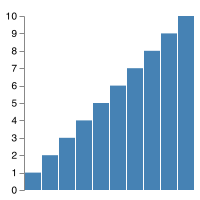
import viz.PlotTargets.pdfSVG
import viz.PlotTargets.svg
val pathToSVG = (1 to 10).plotBarChart()